Windows 11 Update Mechanism Improvements: Users Can Skip Installation, Indefinitely Pause, and Decide Restart Time
Microsoft is making significant adjustments to the Windows 11 update experience, focusing on giving users more control, including skipping updates during initial setup, pausing updates for an indefinite period, and choosing to shut down or restart independently when updates are pending. These changes are currently being rolled out to Windows Insider testers, including Build 26220.8282 in the Beta Channel and Build 26300.8289 in the Canary and Dev Channels of the Experimental branch.
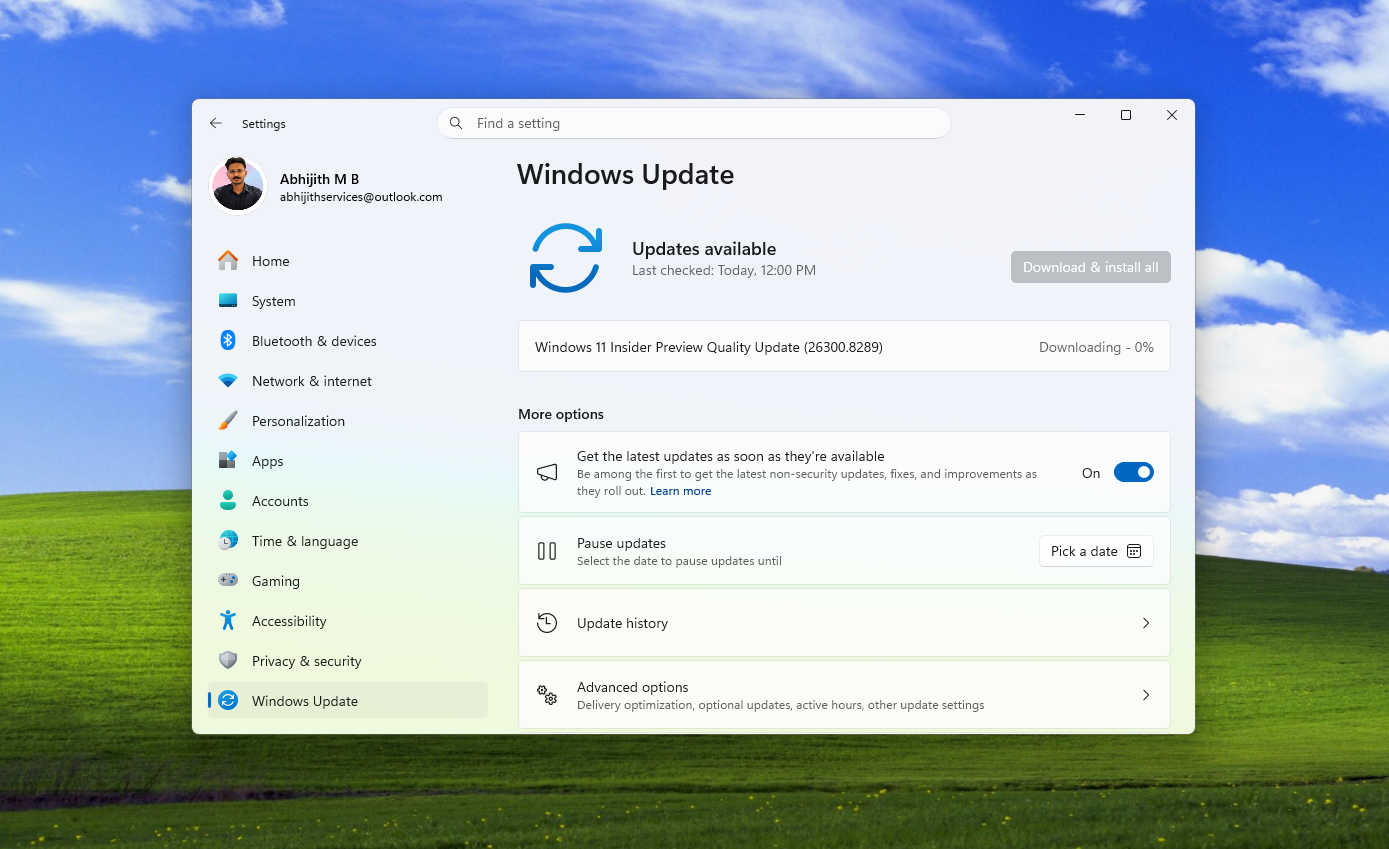
Microsoft is making significant adjustments to the Windows 11 update experience, focusing on giving users more control, including skipping updates during initial setup, pausing updates for an indefinite period, and choosing to shut down or restart independently when updates are pending. These changes are currently being rolled out to Windows Insider testers, including Build 26220.8282 in the Beta Channel and Build 26300.8289 in the Canary and Dev Channels of the Experimental branch.
This round of changes is a response to over 7,621 pieces of user feedback regarding the Windows update experience, and includes four main changes: adding a "Update Later" button during Windows 11 installation setup, allowing users to permanently block devices from receiving updates, supporting shutdown or restart without installing updates, and providing clearer display of available updates in the system.
In terms of overall thinking, Microsoft is trying to unify different types of Windows updates and set the goal of "compressing the update experience to a monthly restart." According to the article, Microsoft will first strengthen the coordination between driver, .NET, and firmware updates to reduce the frequency of interruptions caused by restarts within a month.
In the future, when users go to "Settings > Windows Update," they will see a new "Available Updates" area to centrally display various types of update content. This content includes not only monthly routine security updates, but also emergency out-of-band updates and optional non-security updates.
Under the new mechanism, these updates will first be downloaded silently in the background and then wait for the next scheduled Windows quality update time or wait for the user to approve before installation. If the user wants to install an update as soon as possible, they can still manually start the download and restart the system; otherwise, the update will continue to stay in the background until a subsequent unified application.
During the initial setup phase of a new computer or after reinstalling the system, Microsoft has also adjusted the long-criticized forced update process. The article states that Windows 11 OOBE, the initial setup process after booting, now adds an "Update Later" button, allowing users to skip the update and continue completing the system setup and directly enter the desktop. However, choosing this option also means that the device will temporarily not receive the latest features and security patches until the update is actually completed.
Another change that has received much attention is that the Windows 11 update pause mechanism has been significantly relaxed. The Windows Update page now provides a "Pause Updates" option with a calendar interface, with a default pause period of up to 35 days. However, the new change is that after the 35 days expire, users can extend the pause time again, adding another 35 days, and this process can theoretically be repeated indefinitely. This means that, in terms of mechanism, users can almost keep a Windows 11 computer from installing updates for a very long time, although the article also points out that this is not conducive to security protection.
In terms of shutdown and restart logic, Microsoft has further split the original operation options that were prone to causing trouble. In the past, after the system downloaded the update, it often placed "Update and Shut Down" or "Update and Restart" in a prominent position. If the user just wanted to simply shut down or restart, they often had to wait for the update to finish installing. Now, after the update is downloaded, the system will simultaneously provide four buttons: "Update and Shut Down," "Shut Down," "Update and Restart," and "Restart." Among them, "Shut Down" and "Restart" will always be retained, and users can directly complete the corresponding operation without installing pending updates.
Regarding driver updates, Microsoft has also refined the information display method. Previously, driver update titles in Windows 11 were often highly similar, making it difficult for users to determine which hardware device was about to be updated. According to the new design, Microsoft will add device category information to the driver title, such as monitor, audio, battery, expansion devices, or HDC, to help users more accurately identify the object to be updated. For users who only want to update some hardware drivers and do not want to touch specific devices, this labeling method will significantly improve visibility and controllability.
This series of adjustments shows that Microsoft is fulfilling its previous commitment to improve the Windows 11 experience, and these improvements will also be delivered to more computers through the Windows update mechanism. Currently, the relevant functions are still mainly open to Insider test channels, and the full push to ordinary users is expected to take weeks to months.