New Windows 11 Version Allows Pausing Updates for 35 Days Each Time and an Unlimited Number of Times
Microsoft previously announced in a blog post that it will no longer force users to install Windows 11 updates, as automatic downloading and installation of updates have indeed caused trouble for many users. While timely installation of updates can improve system security, it should not affect normal user usage.
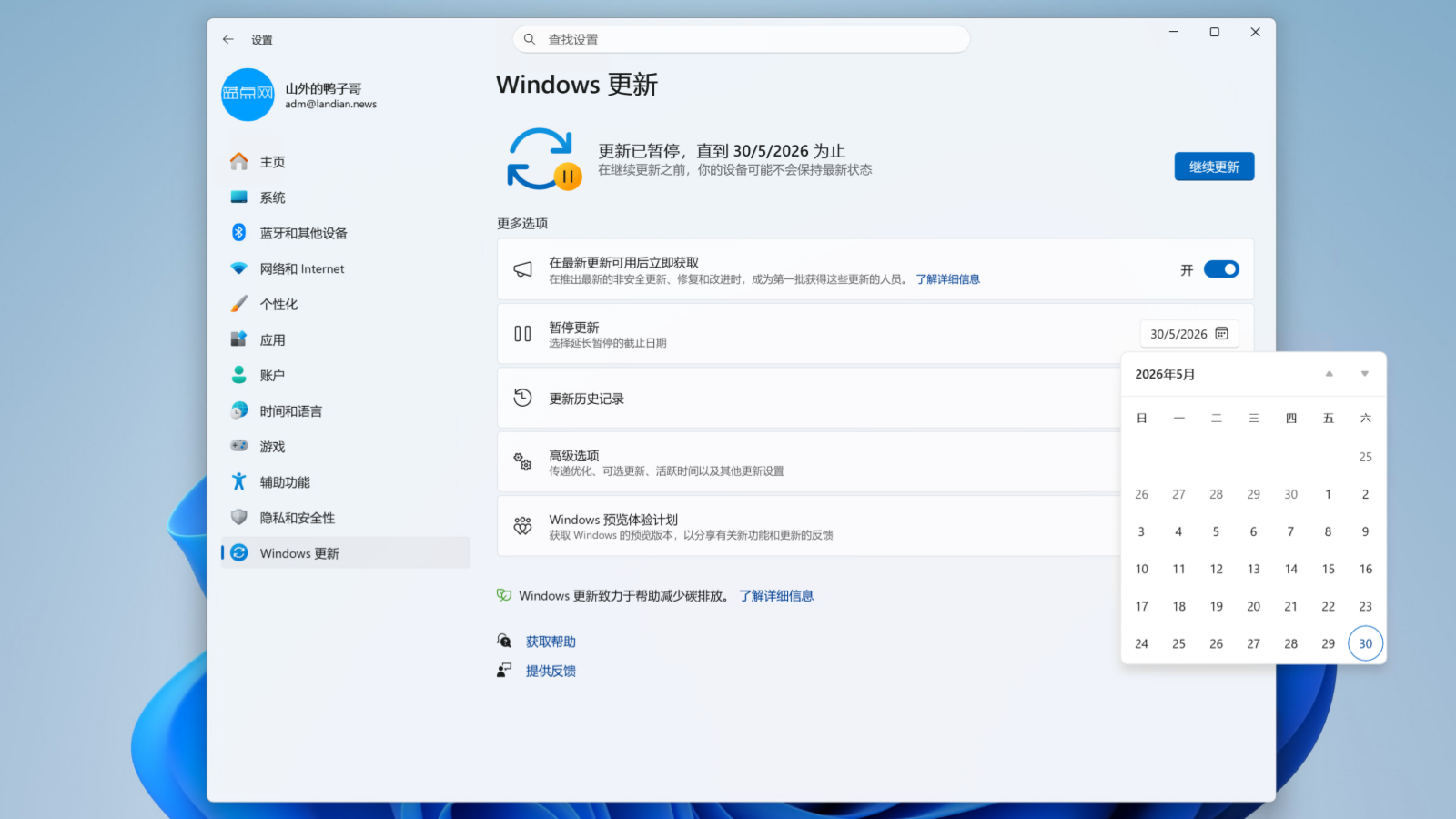
Therefore, Microsoft will continue to adopt automatic updates by default, but if users need it, they can pause updates and even pause them indefinitely. Now, these changes have been brought in Windows 11 Build 26300.8289 (experimental version), and users can see the date selection window when enabling experimental options.
Pause for a maximum of 5 weeks each time, but can pause updates an unlimited number of times:
Currently, users of the official version of Windows 11 can also pause updates, but the pause is forced to re-check for updates after a maximum of 4 weeks, and updates can only be paused again after the system completes the installation of the update. Therefore, ordinary users need to install updates every month, and these updates may also cause various problems to the system.
The new option provided by Microsoft is a date selector. Users can choose up to 35 days in the future, and the system will pause updates after selecting the time. Unlike the previous forced update check upon expiration, users can continue to postpone the update time within the 35-day pause period, ultimately achieving the purpose of indefinitely pausing updates, but they need to manually update the pause date every 35 days at most.
This method allows professional users to choose the update time according to their own plans or preferences. For example: I observed that the recently released update may cause system abnormalities, so I directly set the update to 35 days later to avoid this problematic patch. If there are still problems with the next month's update, I will continue to postpone it.
How to enable the delayed update option:
The prerequisite is that the system version must be Windows 11 Build 26300.8289 or higher. This function is not supported for versions below this version. At this stage, the function is still in testing, so users need to manually enable the function in experimental options and then restart the system to make it effective.
Option path: Windows 11, Settings, Update, Preview Plan, Advanced Options, Experimental Features, Enable "Pause Updates by Schedule", after enabling this option, the system will prompt to restart. After restarting the system, go to Update and click Pause Updates to see the date option function.